From setup to
stepping away.

Install FramePulse, share a view of your render and know what the readings can tell you.

Get started

1. Get the Windows setup

You need Windows 10/11 x64, DaVinci Resolve Studio with Workflow Integration support, your local Blackmagic Design Workflow Integration SDK module and administrator approval. No separate Node.js installation is needed. Browser viewing on a Mac does not mean a native macOS installer is available.

STAGING — Downloads and email disabled

Setup checks for WorkflowIntegration.node in your local Resolve Studio SDK. If it is not detected, browse to the module supplied with your own Studio installation. The usual location is:

%PROGRAMDATA%\Blackmagic Design\DaVinci Resolve\Support\Developer\Workflow Integrations\Examples\SamplePromisePlugin\WorkflowIntegration.node

Close only the FramePulse plugin window before updating. Run the setup and review its SDK check before continuing. The current setup is unsigned: an unknown-publisher warning is a reason to verify the official source and decide whether you trust it, not an instruction to bypass security. Never close or restart Resolve during a render.
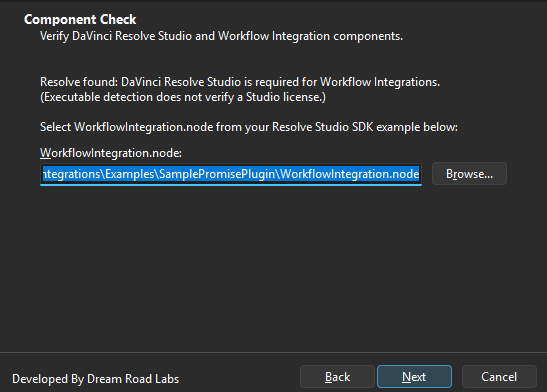
Actual Windows setup component check showing a detected local Workflow Integration SDK module
Actual Windows setup component check, captured in an isolated QA run; no installation performed.

2. Open FramePulse in Resolve

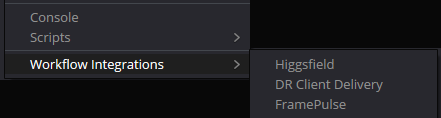
In DaVinci Resolve Studio, choose Workspace > Workflow Integrations > FramePulse. Keep the project you want to monitor active. FramePulse reads render status; use Resolve itself to control your exports.

Resolve Workspace menu with Workflow Integrations submenu showing FramePulse
Actual Resolve Workspace menu, cropped to the Workflow Integrations section.

4. Open the viewer and export normally

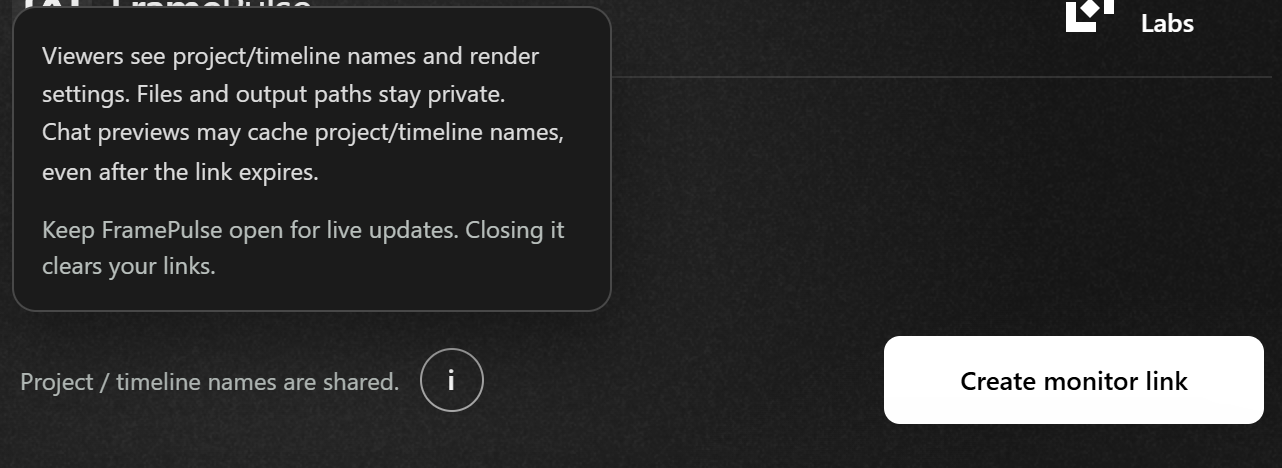
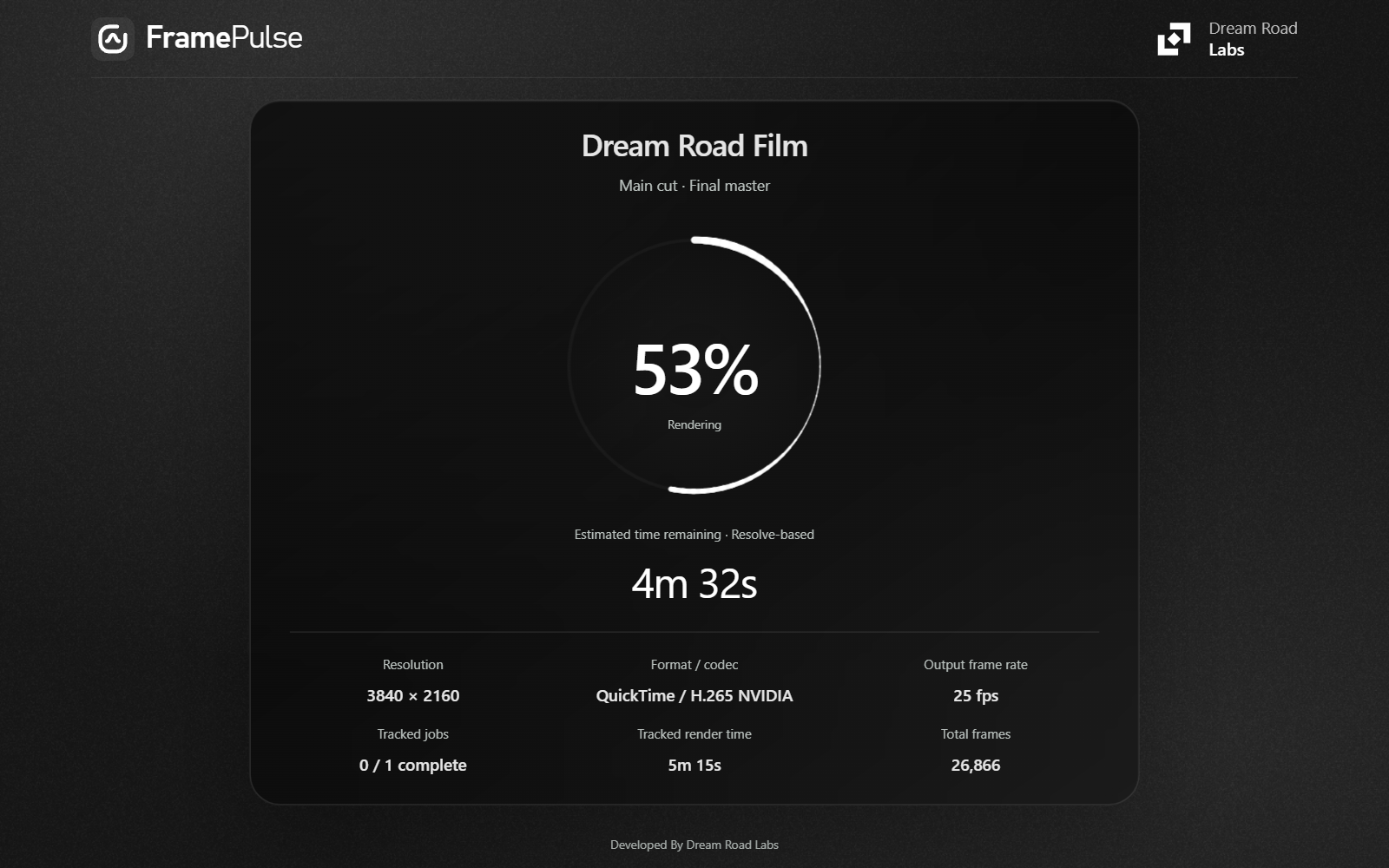
Open the link in a browser on your phone, tablet or another computer. Queue and start your export using Resolve’s normal Deliver controls. The viewer waits until a render is active; an empty queue should not produce invented progress.

Tap or click in the viewer once to allow browser audio. Browser restrictions mean completion sound is not guaranteed without that gesture.

FramePulse browser viewer with demonstration render progress, remaining time and output settings
Browser viewer with demonstration readings. No app installation or account is needed on the viewing device.

Readings explained

Resolve’s interface and its API are not the same clock.

Resolve exposes render values through its API, but those values can remain unchanged while its own interface advances. More frequent polling cannot force a fresh native value. There is no fixed ten-second freshness guarantee.

FramePulse currently samples active jobs every 250 milliseconds and normally publishes about once per second. These are sampling and publication intervals, not promises of how often Resolve supplies new progress or ETA.

Estimated between readings. Confirmed at completion.

FramePulse estimates between received progress anchors and reconciles when fresh readings arrive. Fast exports, startup without enough timing information and changing export speed can create differences from Resolve’s interface; those differences are not always small. Only explicit native completion permits 100%.

Time remaining
Resolve’s native ETA for the current job takes priority when available. Otherwise a clearly labelled estimate is used. It is not a promise for the entire queue.
Output frame rate
The video’s output FPS, not the speed at which your workstation is rendering frames.
Tracked render time
Time tracked while rendering, not the entire wall-clock time since you opened the link.
Waiting, paused or interrupted
These states do not mean fresh observed progress. A waiting monitor can be healthy even when no job is running.
Offline
The viewer freezes its last known snapshot rather than estimating forward. An offline snapshot does not confirm that a render finished.

Troubleshooting

The SDK module is missing

Check that you are using DaVinci Resolve Studio with Workflow Integration support. Free Resolve is not supported. Locate the SDK module supplied with your own Studio installation and select it during setup; do not download a replacement binary from an untrusted source.

FramePulse is missing from the Workspace menu

Check your Resolve edition and that setup installed the plugin under %PROGRAMDATA%\Blackmagic Design\DaVinci Resolve\Support\Workflow Integration Plugins\com.drdashboard.renderstatus. If a restart is needed, wait until every active render has finished and restart Resolve safely; never restart during an export.

The viewer is stale or offline

Keep FramePulse open and check internet access on both devices. If the plugin was closed and reopened, create and share a new link. An old viewer can retain its final offline snapshot until seven-day expiry. If only the native values lag, see Readings explained.

How do I update safely?

FramePulse checks for updates at startup and can show a release notice. Updates require a manual download and setup; there is no silent installation. Close FramePulse before running the new setup. If files remain locked, wait for renders to finish before safely closing Resolve. Reopen FramePulse after setup and create fresh links.

Can I stop tracking without stopping my render?

Yes. Stop tracking or Remove link disconnects monitoring, not the Resolve render. It does not immediately revoke an existing cloud viewer snapshot. To uninstall, close FramePulse and use Windows Settings > Apps > Installed apps.

Contact

Email STAGING — Downloads and email disabled for setup help, feedback or privacy requests. Include your FramePulse version, Windows version, Resolve Studio version and the error text. Remove client names, monitor URLs, writer keys and private paths from screenshots before sending.